
How to Turn a Suno Song into a Singing Music Video
Turn your Suno song into a singing music video with CAVN AI. Follow the audio upload, artist image, timed lyrics and credit checks before you generate.
To turn a Suno song into a singing music video, download an audio file you are permitted to use, open CAVN AI's AI Music Video Generator, choose a digital artist and at least one image, then upload your song. Select the audio section, review the model, resolution and credit estimate, and generate the performance.
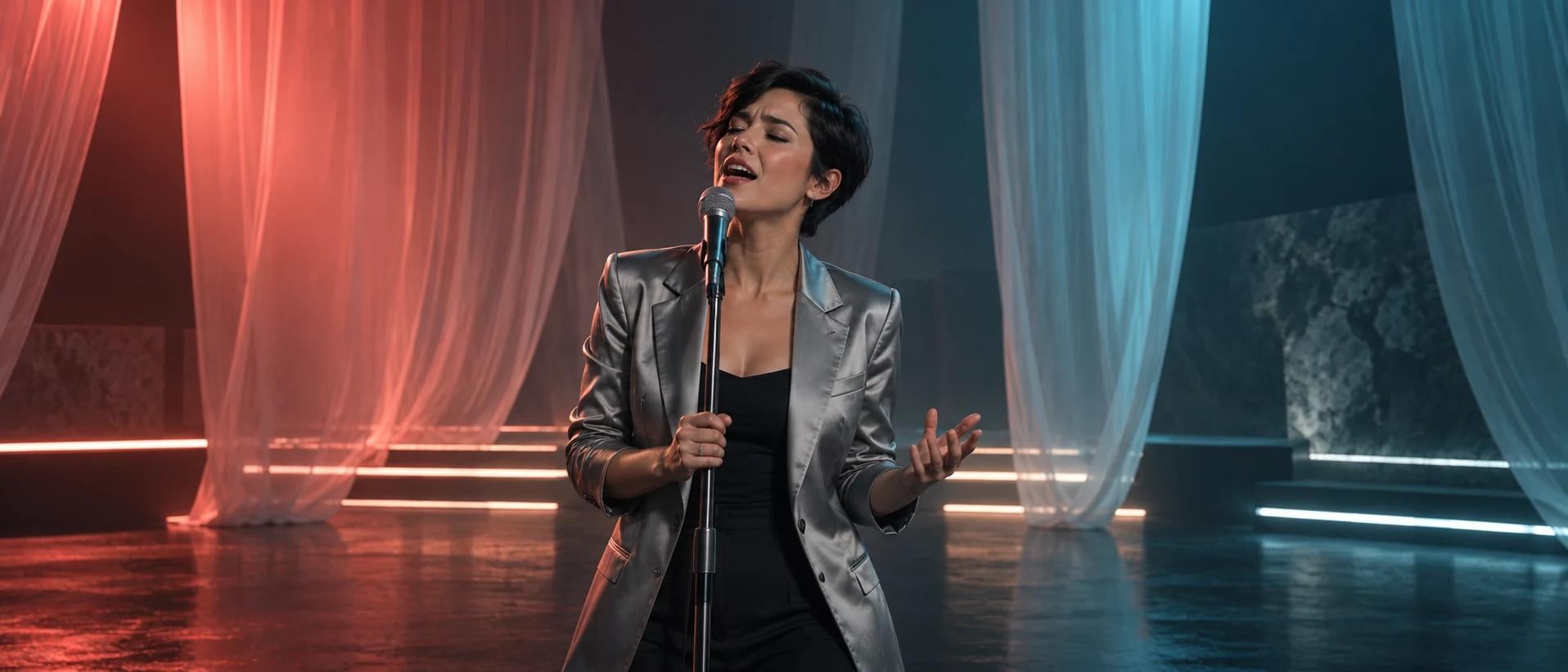
This workflow is for a singer performing your track. You choose the visual material; it is not a promise that an uploaded song will automatically become a story-driven film. It is useful when you already have music and want an artist-led performance without filming a singer yourself.
What do you need before you start?
Prepare your finished audio, an artist image you have permission to use, and access to your CAVN AI account. The current upload interface accepts MP3, WAV and FLAC files up to 100 MB. A Suno share URL is not an audio file: this guide uses a downloaded file and the Upload Local Audio option, not a direct Suno-link import.
Choose a clear view of the performer as a practical starting point, with the face and mouth visible. This is a preparation suggestion, not a guarantee of a particular lip-sync result. Use portrait material for a vertical composition or landscape material for a horizontal one. Decide which part of the song you want to show before spending credits on generation.
For optional subtitles, prepare timed lyrics. An LRC file contains words and their timestamps; a plain lyric sheet is not the same thing. You can also leave subtitles off while you make the performance.
1. Download the song you are allowed to use
In Suno, find your song in Library or Workspace, open More Actions, select Download and choose an audio option available to your account. If the download is a ZIP archive, extract the audio before uploading. Confirm you have the intended version of the song by listening to the local file.
Suno's available downloads and allowances depend on its current account rules. Check Suno's download instructions and download allowance explanation rather than assuming that a playable share link can always be exported. CAVN AI does not remove Suno's download restrictions. If you cannot download a track legitimately, use an eligible file or resolve the download through Suno.
Check the song's permissions separately from downloading it. The ability to obtain a file does not by itself settle whether you may monetize it, use someone else's lyrics, or incorporate a recognizable person's likeness into the video.
2. Choose the performer and image material
Open the singing music video creator. Under Select Digital Artist, choose an available artist or create your own with an authorized portrait. Then select the artist image or images for the performance. Selecting an artist alone is not a substitute for selecting the image material.
For an initial test, a single image makes it easier to judge the singing performance without also comparing several looks or settings. Multiple selected images can give you different views and settings, but choosing them does not mean the app has written a narrative or planned a complete story for you.
Use your own likeness, a consenting person's image, or original character material whose usage rights permit the project. Do not assume an image appearing online or in another creator's tutorial is available for your commercial release.
3. Upload your song and select the section
In Select Song, choose Upload Local Audio and select your MP3, WAV or FLAC. Wait for the upload to finish. Preview the waveform and choose the section you want to turn into a performance. Songs already in your CAVN AI library can be selected from My Works instead.

Public interface sample, captured September 10, 2026. This is not a generated result or a Suno benchmark.
A short vocal passage is a practical first test: it lets you inspect the result before committing to a longer selection. Listen to the start and end so that the passage does not begin midway through a word or stop before the phrase finishes. Use the duration and settings the current interface actually permits.
Do not use a short successful preview as proof of full-song quality. If your goal is a complete release, review the longer output separately and include every paid retry when calculating the cost of that release.
4. Add timed lyrics only if you need subtitles
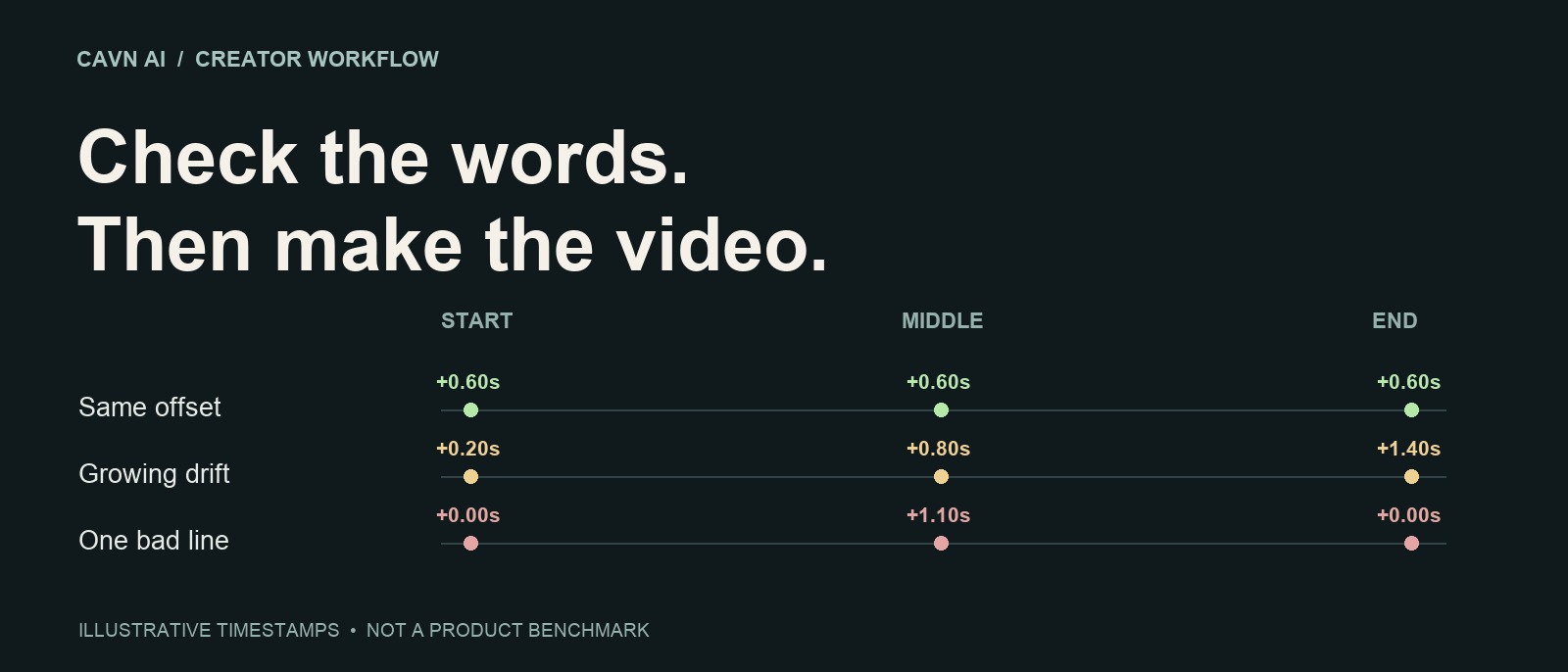
Turn on Add Lyrics Subtitles if you want text over the performance. When timed lyrics are not available, provide an LRC file or leave the option off. Review the subtitle appearance, including style, size and position, before submitting the task.
Use lyrics that belong to the same version of the audio. A different intro, an extended chorus or an edited recording can put otherwise correct words at the wrong time. A plain text lyric sheet does not contain the timing required by this workflow. Do not describe this step as automatic word-by-word transcription.
Keep essential text clear of the performer's mouth and the areas your publishing platform may cover with its own controls. Review the downloaded result on the kind of screen your audience will use, rather than judging subtitle readability only inside the creator.
5. Review the credit estimate, then generate
Choose the generation model and video resolution available in your account. The singing interface offers resolution options from 480p to 4K; those options alone are not a guarantee of source detail, perfect motion or identical results at every setting. Check the estimate for the specific combination you selected.
Generation uses credits. Audio duration, model and resolution affect the estimate, so there is no single honest cost for every Suno-to-MV project. Check your balance and the current plans and credits before submitting. Browsing examples and generating a new video are different actions; do not assume that a free account includes enough credits for your intended render.
Submit only once you are satisfied with the selection. Wait for confirmation that the task was created, then use History to check its progress. Do not leave during an unfinished upload or assume a spinner means the creation request has already succeeded.
6. Review the result before you publish
Open the completed task in History and review the entire selected passage. Check the audio version and boundaries, lip movement on the vocal phrases, facial appearance, unwanted motion, subtitle timing and the final framing. A technically completed task can still need creative review.
Download the completed video and inspect the exported file. If you decide to generate again, record the extra cost instead of reporting only the first attempt. For a project log, keep the audio selection, artist material, model, resolution, estimate, actual credits, elapsed time and number of retries. This makes your next attempt easier to evaluate.
Before a public or commercial release, check your plan and CAVN AI's usage terms together with the rights to the song, lyrics and images. Permission to use a tool's output does not automatically clear every third-party asset supplied to it.
Watch existing singing MV examples
The official CAVN AI singing MV showcase includes Perfect (32 seconds), Travis Scott (30 seconds) and Flowers (30 seconds). These are selected performance examples, not evidence of a fixed generation time, cost or success rate. Their titles identify the showcase entries; they do not imply endorsement by the named recording artists.
For an external walkthrough, see Levelma's CAVN AI tutorial and the accompanying Japanese article. The article documents artist-image selection, audio selection, resolution choices and singing results. It includes a promotional code, so this is presented as a creator demonstration rather than an independent benchmark. Availability and interface details may differ from the current product.
Watch the results at their original sources. Permission to view a demonstration is not permission to reuse its song, performer likeness or footage in your own release.
Common questions about Suno singing music videos
Can I paste a Suno link instead of downloading audio?
This guide uses Upload Local Audio. Download a permitted audio file first and upload it to CAVN AI. A Suno listening link is not interchangeable with an MP3 or WAV, and this workflow is not a way to bypass another service's download rules.
Does this create a complete story from my song?
The workflow described here creates a singing or lip-sync performance using selected artist images. It does not promise automatic story writing or narrative continuity from audio alone. Choose it for an artist-led performance, and assess other video styles by their actual workflow and examples.
Do I need to generate a new song in CAVN AI?
No. You can use your existing authorized Suno audio through local upload. Generating music in CAVN AI is a separate option, not a prerequisite for following this tutorial.
Why is the subtitle option unavailable?
Check whether the selected audio has timed lyrics. If not, supply the matching LRC file or turn subtitles off. Words without timestamps cannot be treated as already synchronized lyrics. Also wait for the audio upload and selection to complete before checking the subtitle controls.
What should I do if the result is not what I expected?
First separate a failed task from a completed result you want to change. Check the task status and any account message. For creative changes, review your audio section, image selection and settings before submitting another paid request. Record what changed so you can compare attempts fairly.
Start with the song you already have
Keep the first project focused: one authorized song, a deliberate artist-image choice and a vocal passage you can review closely. Once the performance meets your needs, decide whether a longer selection or another visual setup is worth the additional generation. Open CAVN AI's AI Music Video Generator to prepare your singing MV.
This is a CAVN AI workflow guide, not a sponsored statement from Suno or an independent comparison test. Suno and CAVN AI are separate services. Instructions and account options were checked on September 10, 2026; recheck current settings before starting a paid task.