
How to Make a Lyric Video: Get the Words in Time
Make a lyric video with matching audio and timed lyrics. Use three worked examples to check constant offset, growing drift and isolated line errors before export.
To make a lyric video, pair your final song recording with lyrics timed to that exact recording, build the visuals around them, and check the exported file. Choose the timing workflow before spending time on backgrounds: some editors let you position text on a timeline; other tools expect you to bring timestamps.
This guide walks through the preparation, timing checks and export review. The three numerical examples below are deliberately constructed to explain different timing problems. They are not measurements of a video generator's performance.
1. Start with the recording you will actually publish
Put the final audio file and its matching lyric text in the same project folder. Give the recording a useful version name, such as song-final-with-intro.wav. Check that the words match what is sung, including repeated choruses, ad-libs and any instrumental sections.
Listen for the first vocal entrance. An intro added after you timed the lyrics changes where later lines belong. A shorter edit, a different performance or a speed change can also make a previously correct timing file unsuitable. Check the actual recording rather than assuming that two files with the same song title share a timeline.
You will need a tool that can play the audio while you edit or inspect lyric timing. Do the timing work against this recording, then keep it unchanged through video creation.
2. Choose how the words will be timed
There are two practical routes. In a timeline editor, add text layers or subtitle events and position them against the vocals. In a workflow that imports timed lyrics, prepare the timing file first, then supply it with the audio.
For example, the current CAVN AI lyric-video workflow accepts timed LRC lyrics or pasted timestamps. Its public instructions distinguish these from plain lyric text: plain text can guide the visuals, but it is not automatically turned into synchronized subtitles. Check the input requirements of whichever tool you choose before assuming that a pasted verse will appear on the beat.
Prepare timestamped lyrics you can import
Play your final recording and pause at the start of each sung line. Record that position in minutes, seconds and hundredths, then put it in square brackets before the matching words. Keep one lyric line per line of text. Repeat for the whole recording, including repeated choruses.
Here is a three-line teaching example. These words and times are invented; replace both with the words and entrances in your recording:
[00:12.00]Example line one
[00:16.50]Example line two
[00:21.25]Example line three
Copy the completed timestamped text into the creator's timed-lyrics input, or save it as plain UTF-8 text with a .lrc extension if you are using its LRC upload option. Check that your text editor did not add .txt after the filename. You can also use a timing tool that explicitly supports LRC export; do not assume every subtitle editor does.
The timestamps describe line starts, not an animation or a guarantee of word-by-word highlighting. Inspect how the chosen importer handles line endings and gaps. In the teaching example, the three starts are 12 seconds, 16.5 seconds and 21.25 seconds. Getting the syntax right does not make those times correct for your song.
Or place text directly on an editor's timeline
If you are working manually, listen around the vocal phrase, place its text, and replay the transition into the next line. Aegisub's official audio-timing documentation describes working with playback and a waveform or spectrogram. A waveform can help locate an entrance, but your final check is whether the displayed words match the audible phrase.
3. Check the beginning, middle and end before styling

Choose a clear sung line near the beginning, another around the middle and one near the end. Avoid relying only on the first line: it can be correct while later lines drift.
At each checkpoint, record two values: when you hear the phrase begin, and when its text appears. Subtract the vocal time from the text time. A positive difference means the text appears late; a negative difference means it appears early.
Keep the playback conditions the same while comparing checkpoints. If you suspect a device or playback delay, repeat the check under another consistent playback setup before rewriting every timestamp. These checks suggest where to investigate; they do not prove the cause of an error.
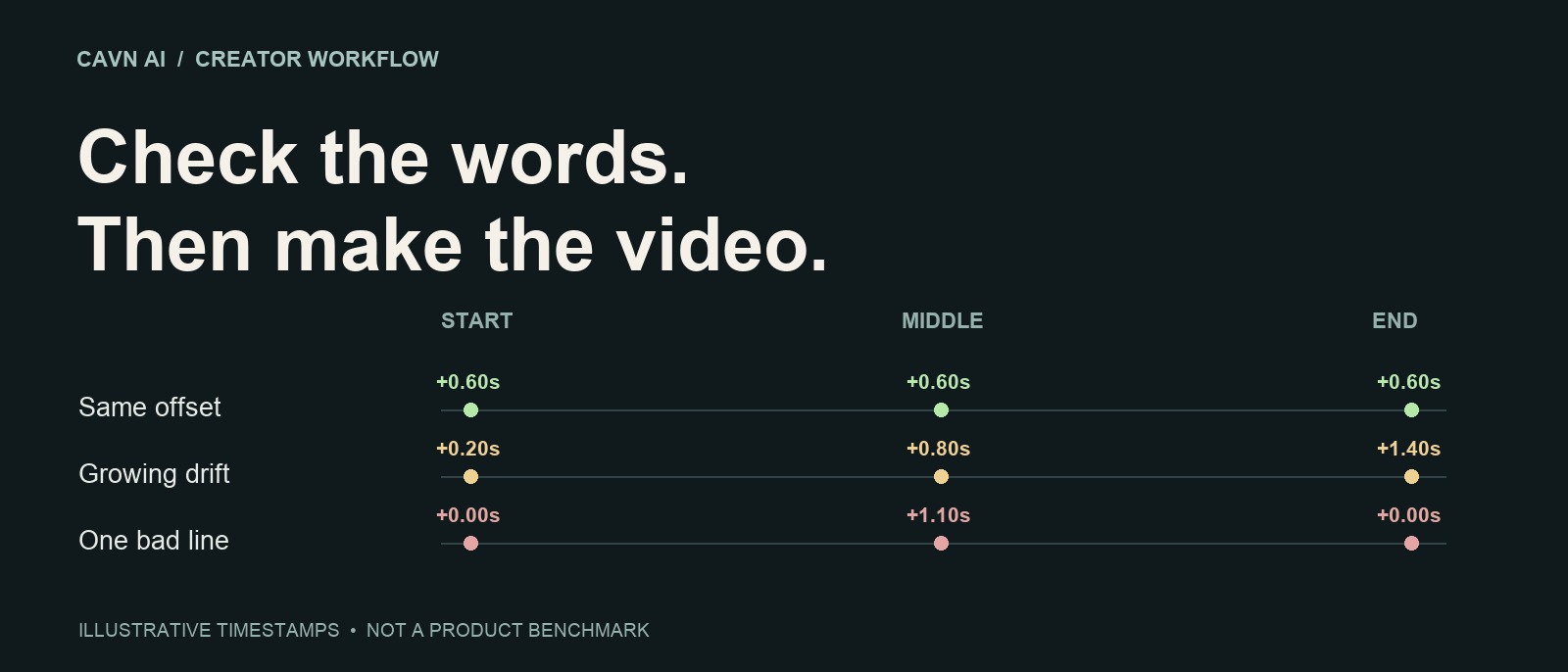
Example A: every checkpoint is late by the same amount
Suppose the three vocal entrances are at 12.00, 72.00 and 132.00 seconds. The captions appear at 12.60, 72.60 and 132.60. Each is 0.60 seconds late.
In this constructed example, moving all three caption starts 0.60 seconds earlier aligns them. A whole-track shift is worth checking when the offset stays consistent. Aegisub has a Shift Times tool for this kind of operation. Confirm what is selected and the direction of the shift before applying it, then replay all three checkpoints. Do not move a line before the start of the recording.
Example B: the delay grows through the song
Now keep the same vocal times, but let the captions appear at 12.20, 72.80 and 133.40. The delays are 0.20, 0.80 and 1.40 seconds.
Shifting everything 0.20 seconds earlier fixes the first checkpoint but leaves the others 0.60 and 1.20 seconds late. One global offset cannot solve this example. Check whether the audio and lyric timing came from different edits or playback speeds. If your editor supports rescaling time, inspect the result phrase by phrase; otherwise retime against the final recording. A song with a changed arrangement may need local corrections rather than one stretch of the entire timeline.
Example C: only one line is wrong
Suppose the vocal times are still 12.00, 72.00 and 132.00, but the captions appear at 12.00, 73.10 and 132.00. Only the middle checkpoint is late, by 1.10 seconds.
Correct that event and check the surrounding lines. Shifting every caption would spoil the two checkpoints that already match. Look for a missed repeat, a line attached to the wrong phrase or an accidental edit before changing the whole song.
Three checkpoints are an early diagnostic, not a substitute for watching the full export. Once the overall pattern is understood, check every transition, especially repeated choruses and long instrumental gaps.
4. Build the picture around readable lyrics
After the timing works, choose a background and text treatment. Start with a frame from the busiest part of the video, not an empty intro. Check whether the words remain readable there, then inspect a small preview at the size people will actually watch.
Break a long phrase at a natural reading point rather than shrinking everything until it fits. Keep the words away from visually busy details and leave room around the frame edges. If you make a vertical version, review its line breaks separately; a layout that reads comfortably in landscape may need a different text arrangement.
Decide whether the text should remain visible through a pause or disappear before the next phrase. Check how your chosen editor represents that gap. Avoid guessing an unfamiliar timing-file convention and assuming it will behave the same in every tool.
5. Generate or render, then inspect the downloaded file
For CAVN AI's current workflow, follow this sequence:
First, open the lyric-video creator from the linked product page. Upload the final audio file or select the matching song from your library, then enter its title.
Next, upload the .lrc file or paste your timestamped lyrics. Keep subtitles enabled. Set their appearance, size and position, then choose landscape or portrait and the available visual style. Recheck that the lyrics belong to this recording before submission.
Finally, inspect the account's quote, submit the generation and preview the completed result before downloading. These steps come from the current public product instructions. This article does not include a paid generation test or promise a completion time, price or success rate.
Download the result and watch that file from start to finish. Check the first vocal, each chorus, the three timing checkpoints and the ending. Look for clipped lines, unreadable text and lingering lyrics during an instrumental passage. If the export differs from the editor preview, investigate that difference before repeatedly retiming an otherwise correct source file.
For YouTube, its official guidance describes 16:9 as the standard computer-player aspect ratio and explains that the player adapts to other ratios. Choose your intended destination's current format requirements and review the actual framing. Uploading a file does not replace checking it on a phone and on the screen where it will be watched.
A final check before you publish
Can you follow the lyrics without looking away to decode a crowded line? Do the words match this version of the song? Does the last line finish cleanly? Those checks matter more than adding another animation to a video whose timing is still wrong.
When your audio and timing are ready, open CAVN AI's lyric-video creator to review its current workflow. If you want an on-screen performer singing instead of words over visuals, use the separate music-video workflow; subtitle preparation and performance generation solve different parts of the project.
Sources and method
Product requirements were checked against CAVN AI's public lyric-video page on November 25, 2026. Timing tools are referenced from Aegisub's audio-timing and Shift Times documentation; output framing is referenced from YouTube Help. The timing arithmetic and diagram were created for this guide and checked with a reproducible script. They illustrate the method and do not report results from generated music videos. This team guide was prepared with AI assistance and independently reviewed for clarity and factual support.